Build the shortcut yourself
Kleave moves windows through one small shortcut in the Shortcuts app. If you'd rather not add the ready-made file, you can build the same shortcut by hand. The video goes through every step.
Keep Kleave's setup window open while you build it, and type the name Kleave Window Mover last, once every action is in: Kleave picks the shortcut up the moment the name matches.
Step by step
The same steps as the video, with a picture of each. Copy the values rather than typing them: Kleave reads the keys, the replies and the name character for character.
-
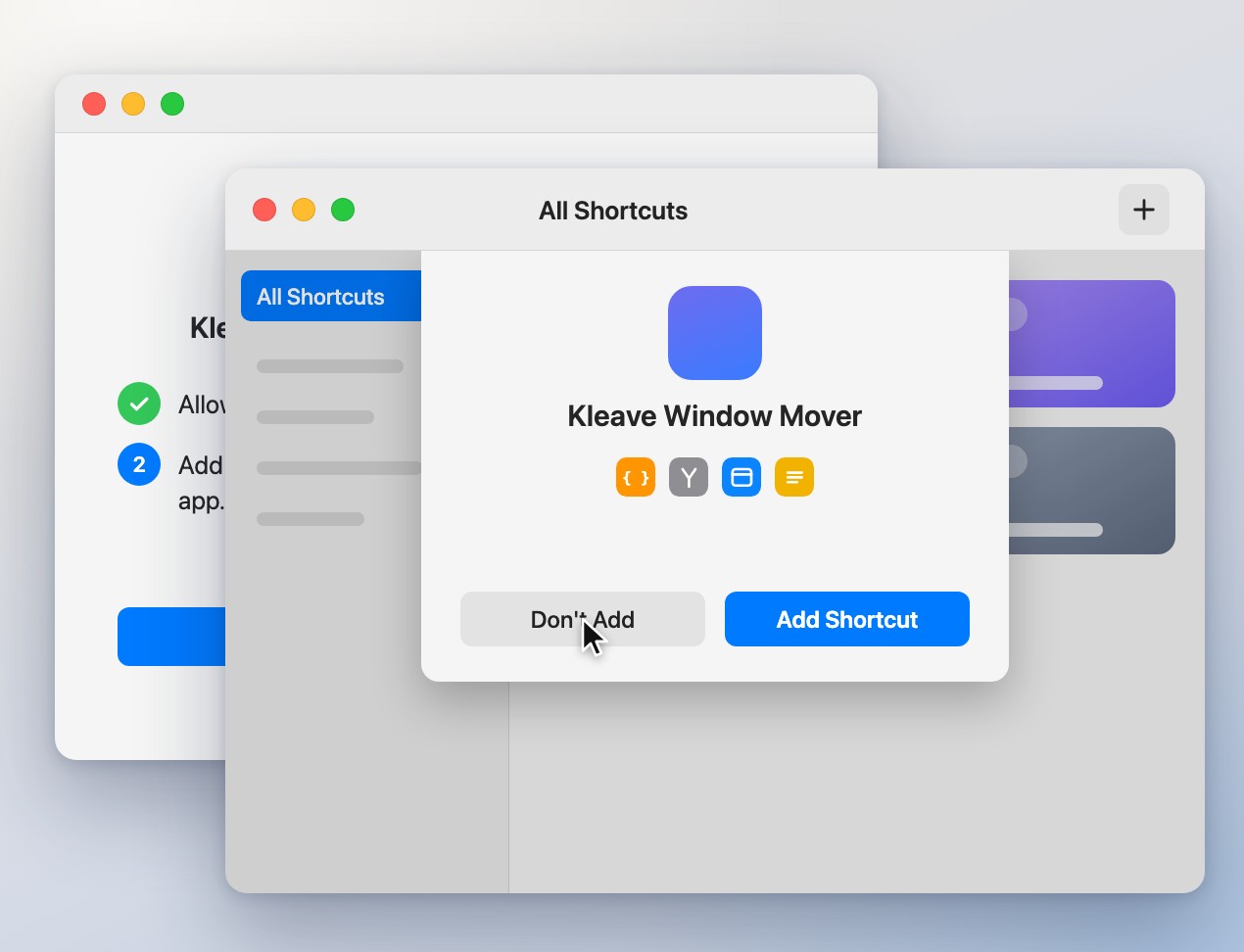
1Start in Kleave
In Kleave's setup window, click
Add Shortcut…. When Shortcuts shows the shortcut, clickDon't Add. Leave Kleave's window open: it now watches for the shortcut you build. -
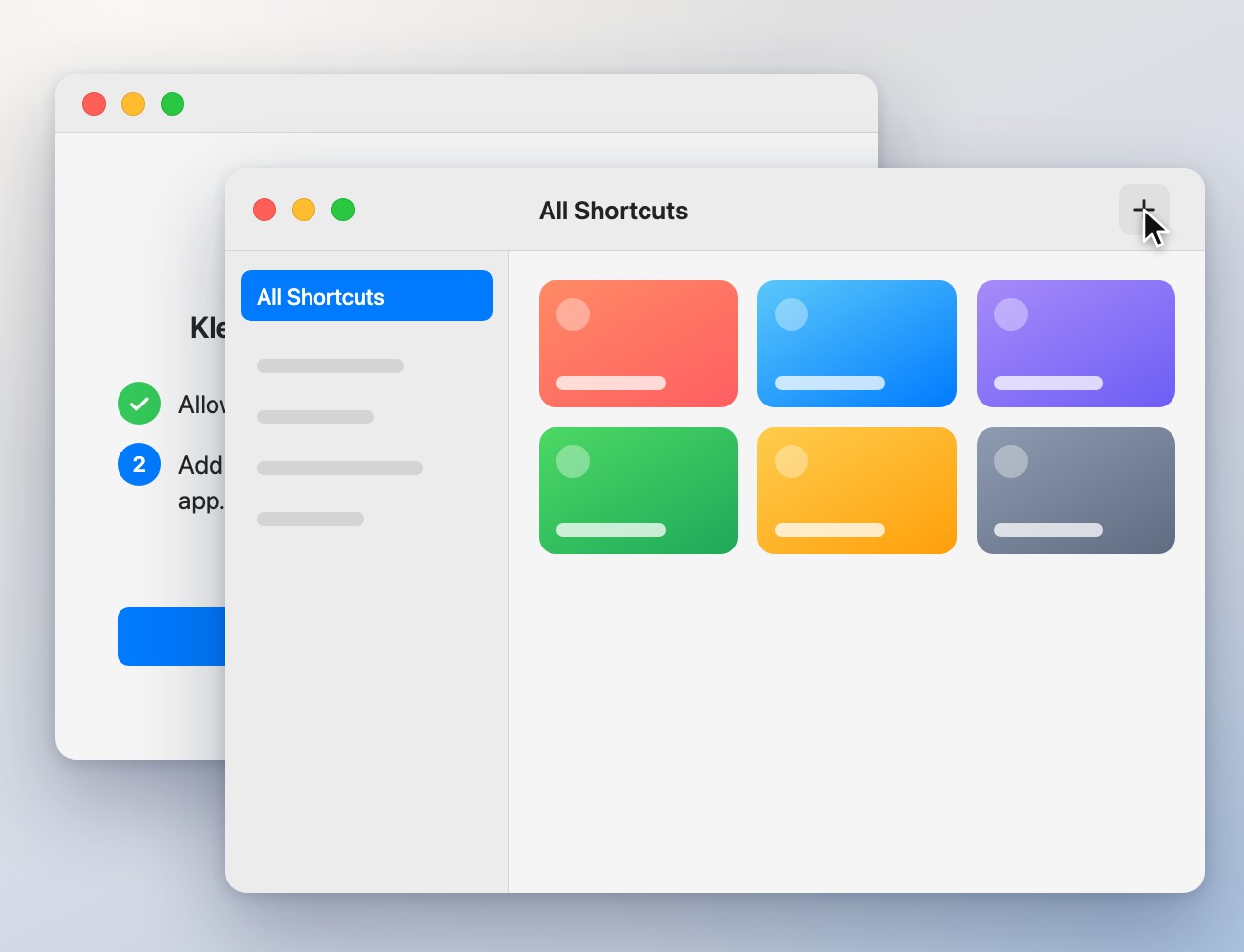
2Make a new shortcut
In Shortcuts, click
+. Leave the name alone for now — you set it last. -
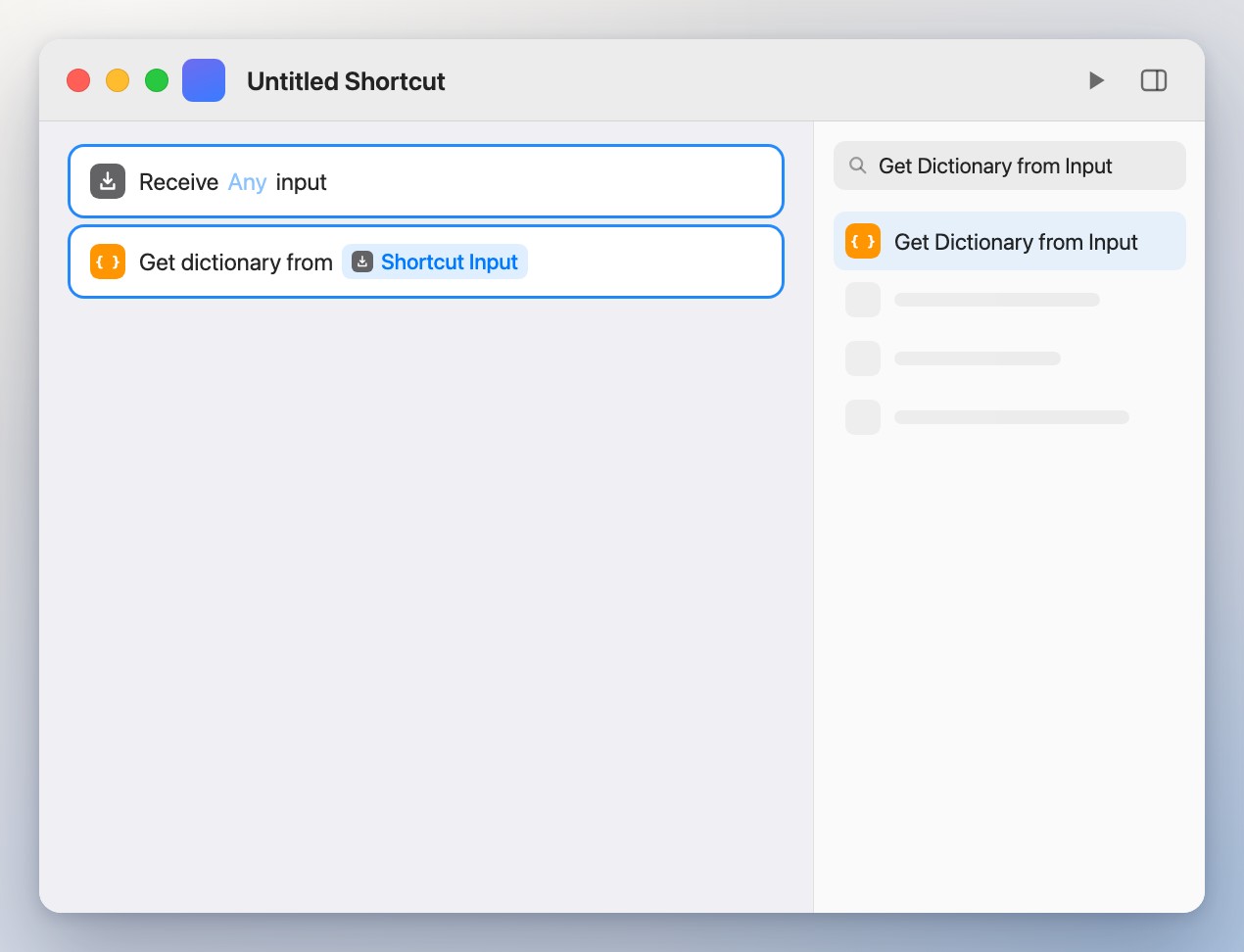
3Read the input
Search the action list for
Get Dictionary from Inputand drag it in. Set it to readShortcut Input. -
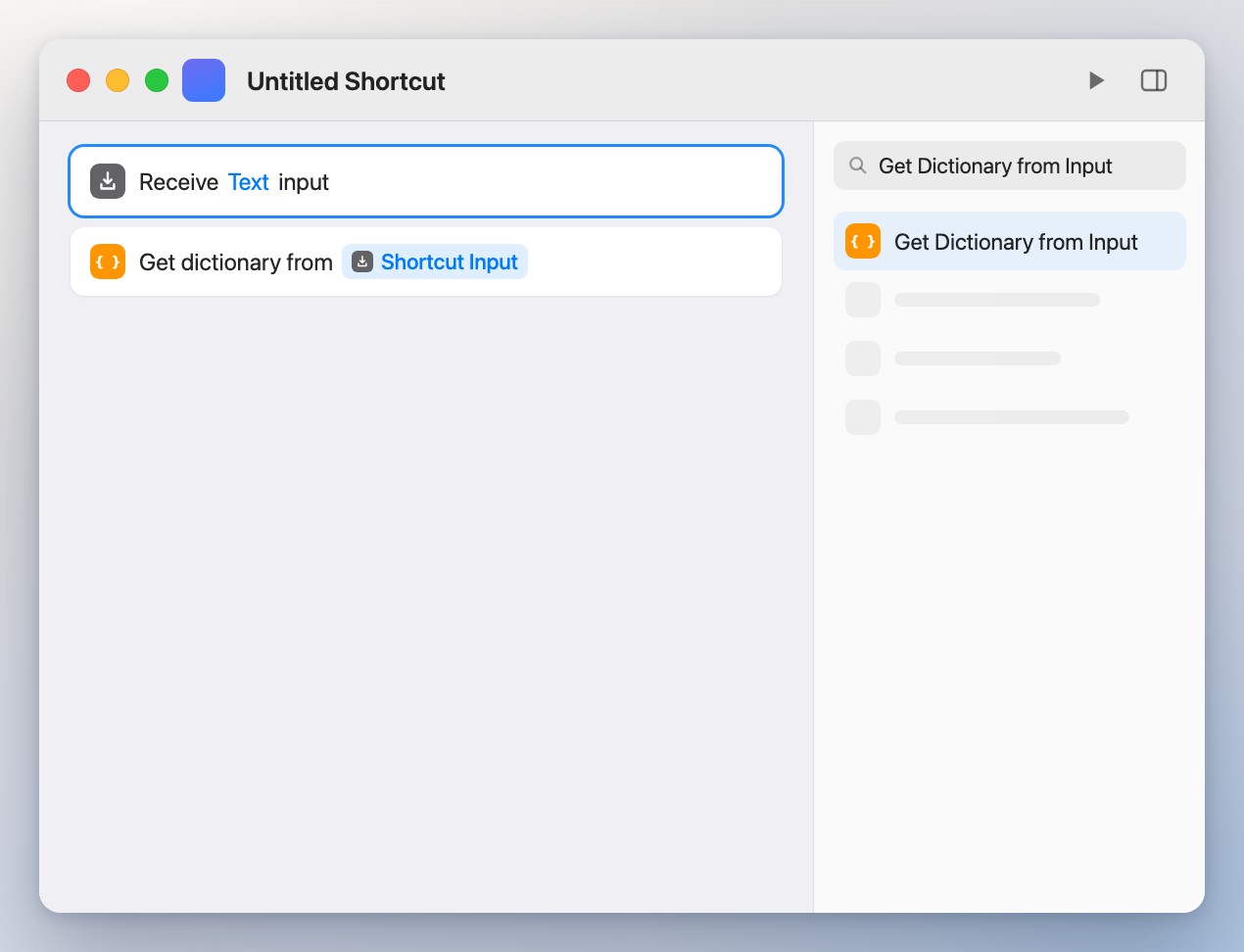
4Accept text
At the top of the shortcut, set the input type to
Text. Kleave sends each request as a short piece of text. -
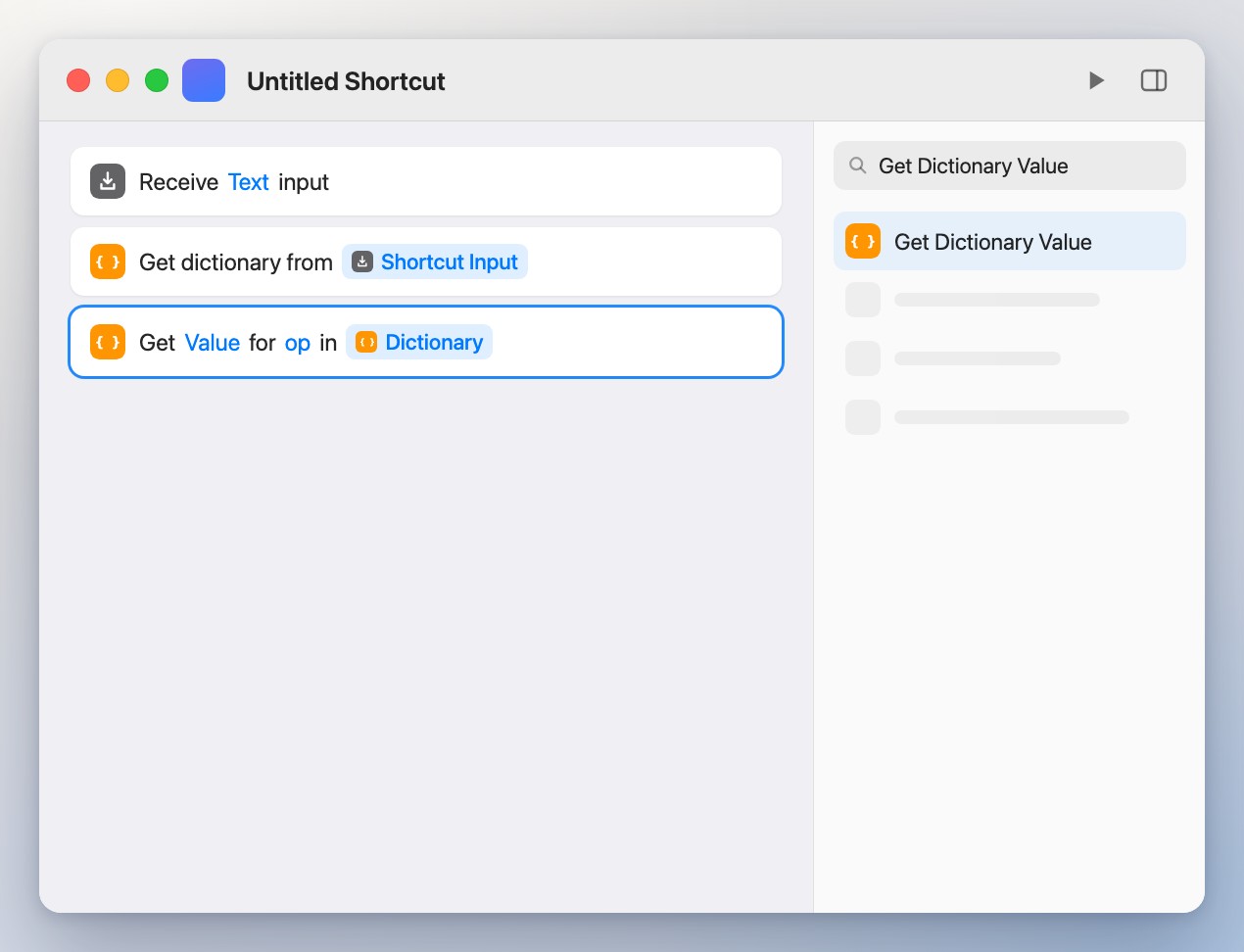
5Read the request
Add
Get Dictionary Value. Set it to get theValuefor the keyop.op
-
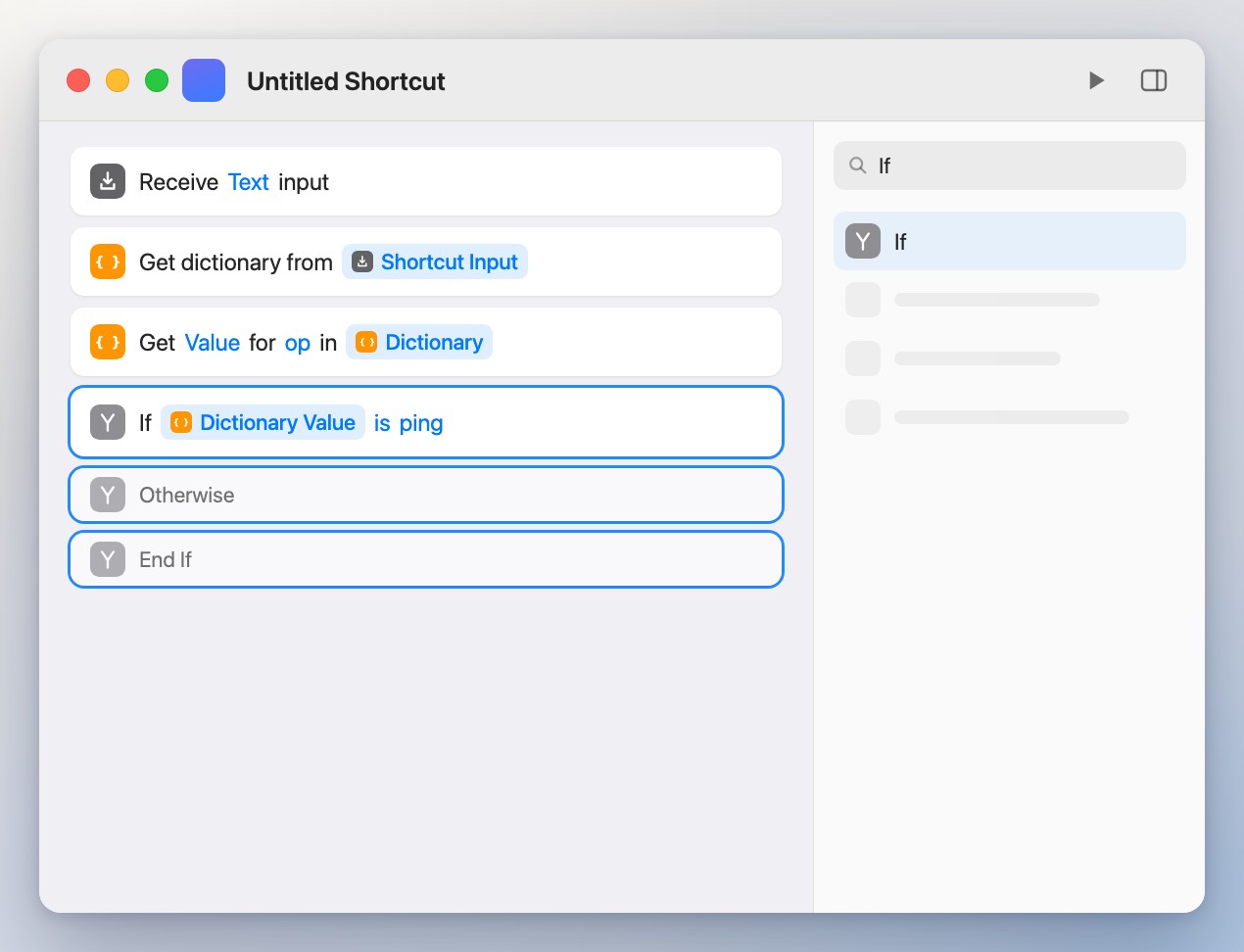
6Check for a ping
Add
Ifand set it to:Dictionary Valueisping. Shortcuts addsOtherwiseandEnd Ifon its own.ping
-
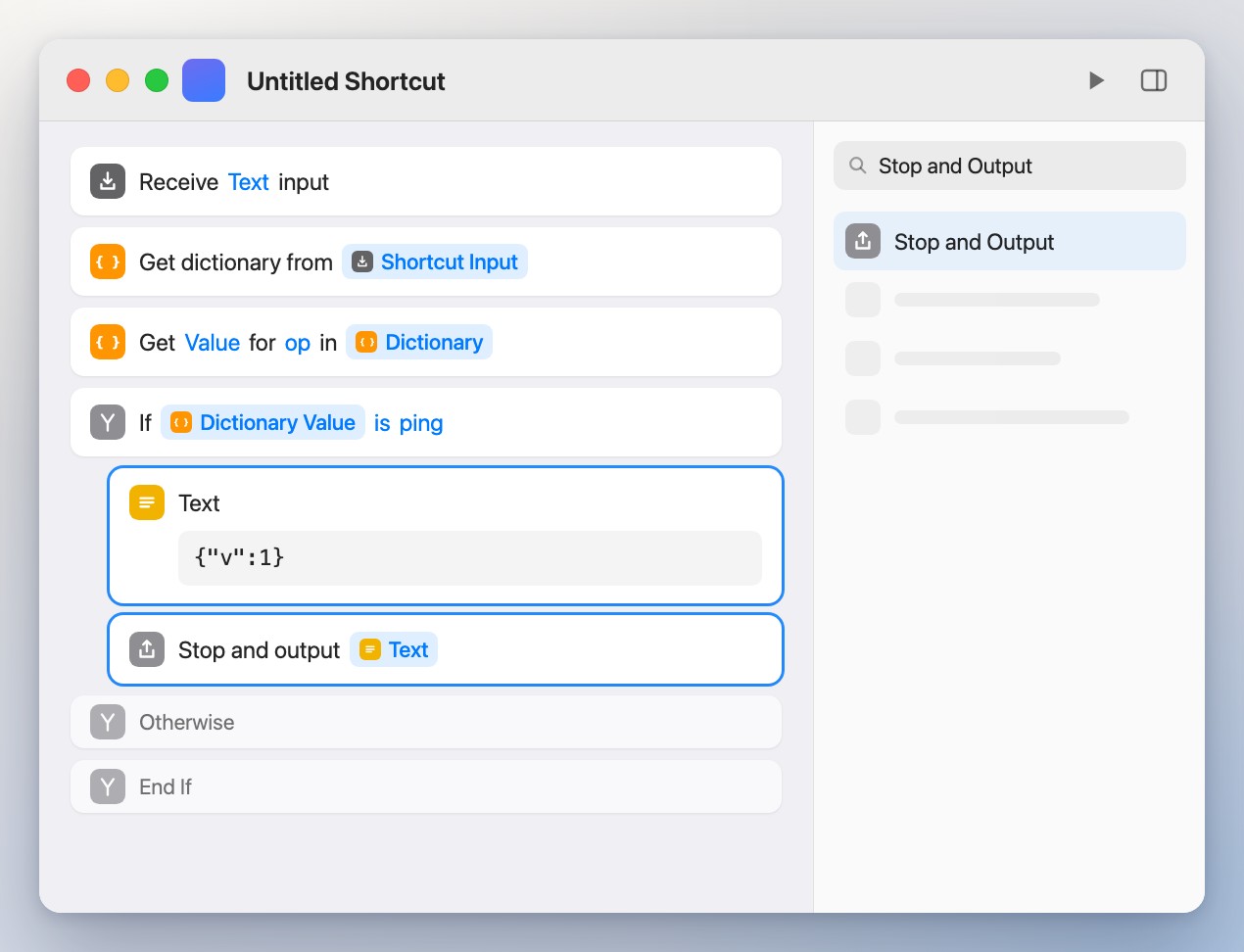
7Answer the ping
Inside the If, add
Textcontaining exactly{"v":1}, thenStop and Outputwith that Text. Kleave pings the shortcut to check it is there.{"v":1}
-
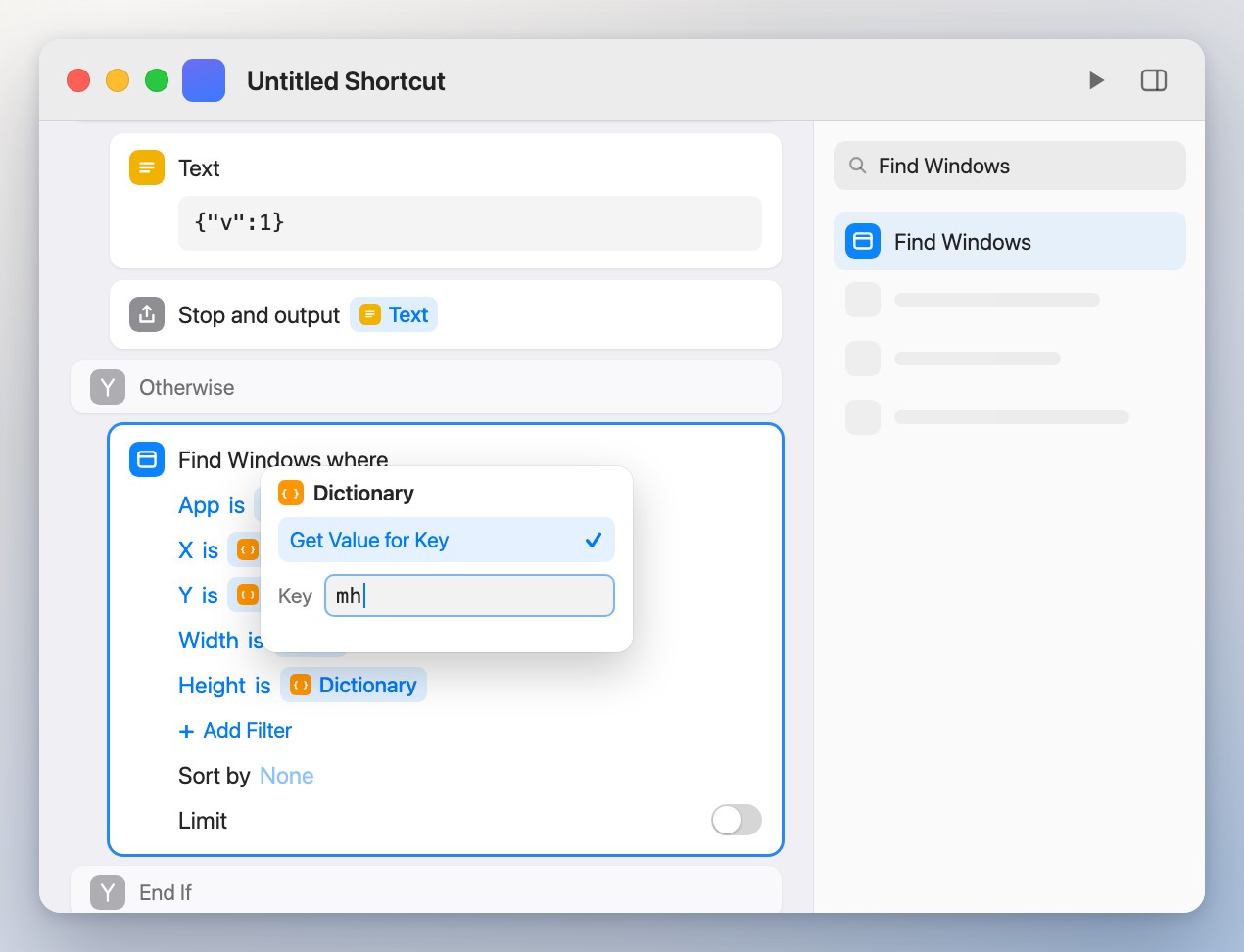
8Find the window
Under
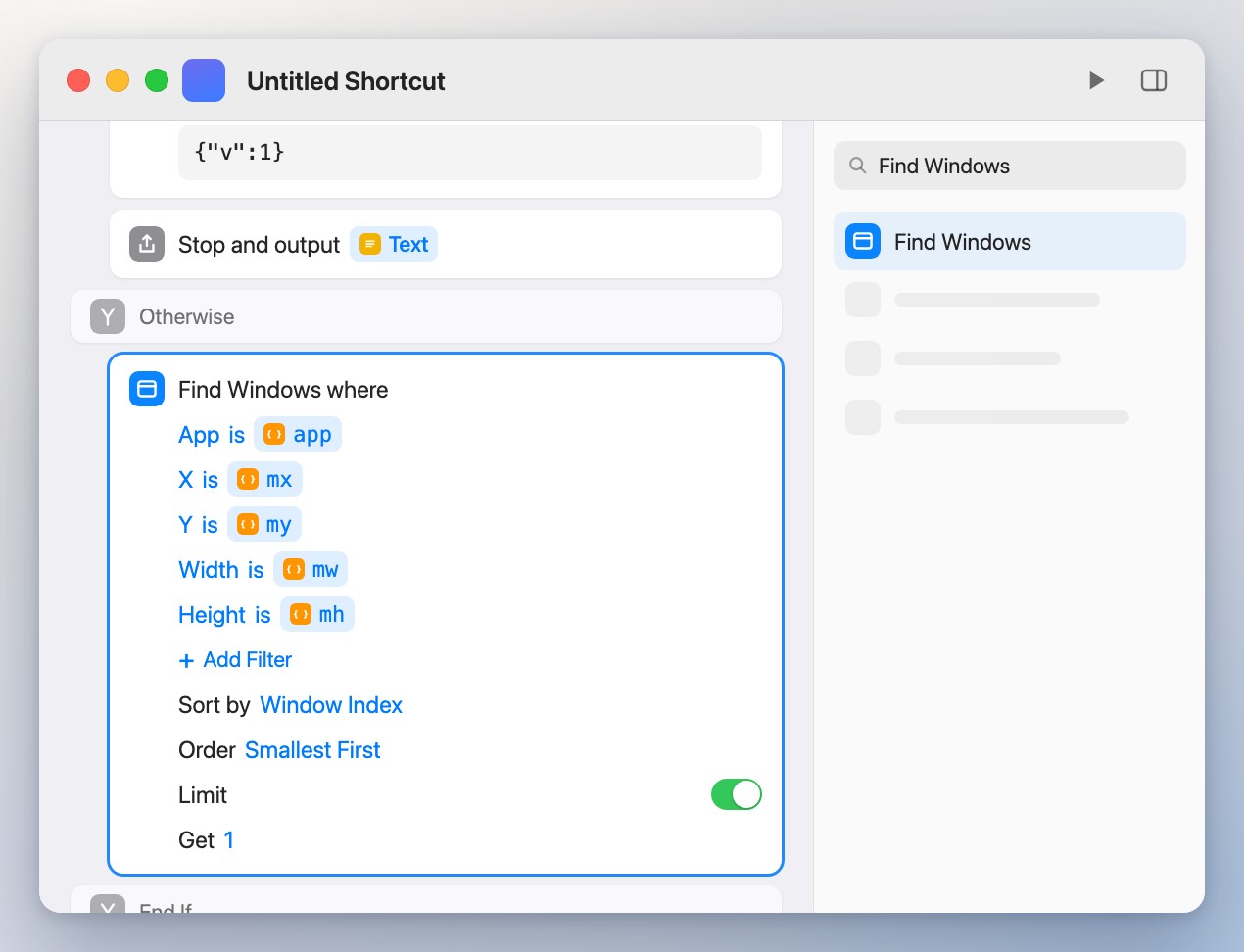
Otherwise, addFind Windowswith five filters: App, X, Y, Width and Height. For each value, insert theDictionaryvariable, click it, chooseGet Value for Keyand type the key:app,mx,my,mw,mh.appmxmymwmh
-
9Keep the front window
In the same Find Windows, set Sort by to
Window Indexand check that Order isSmallest First. Turn Limit on and set Get to1. Two windows of one app can share a spot; this keeps only the frontmost, the one Kleave means.1
-
10Catch a missing window
Below Find Windows, add another
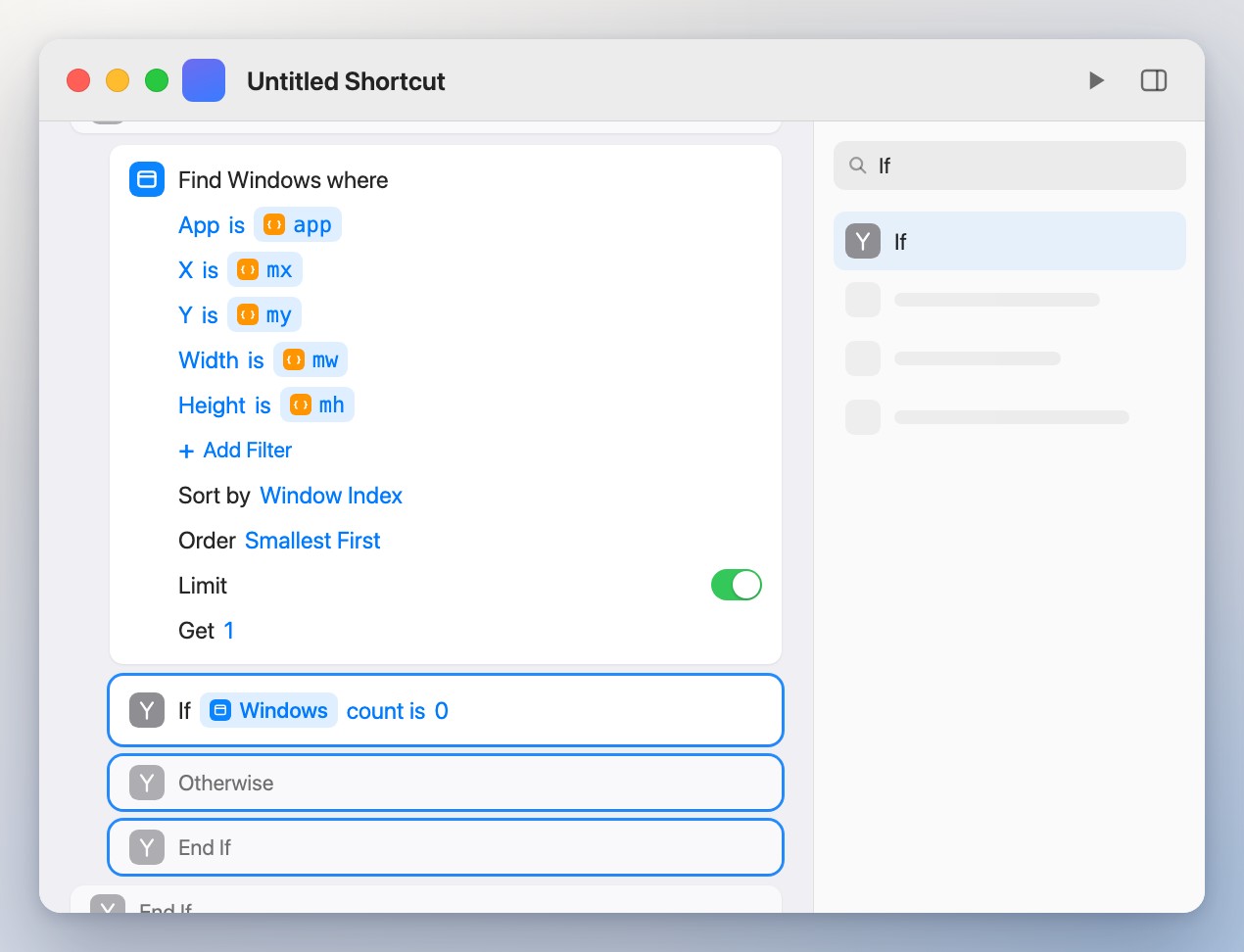
If:Windowscount is0.0
-
11Report it
Inside that If, add
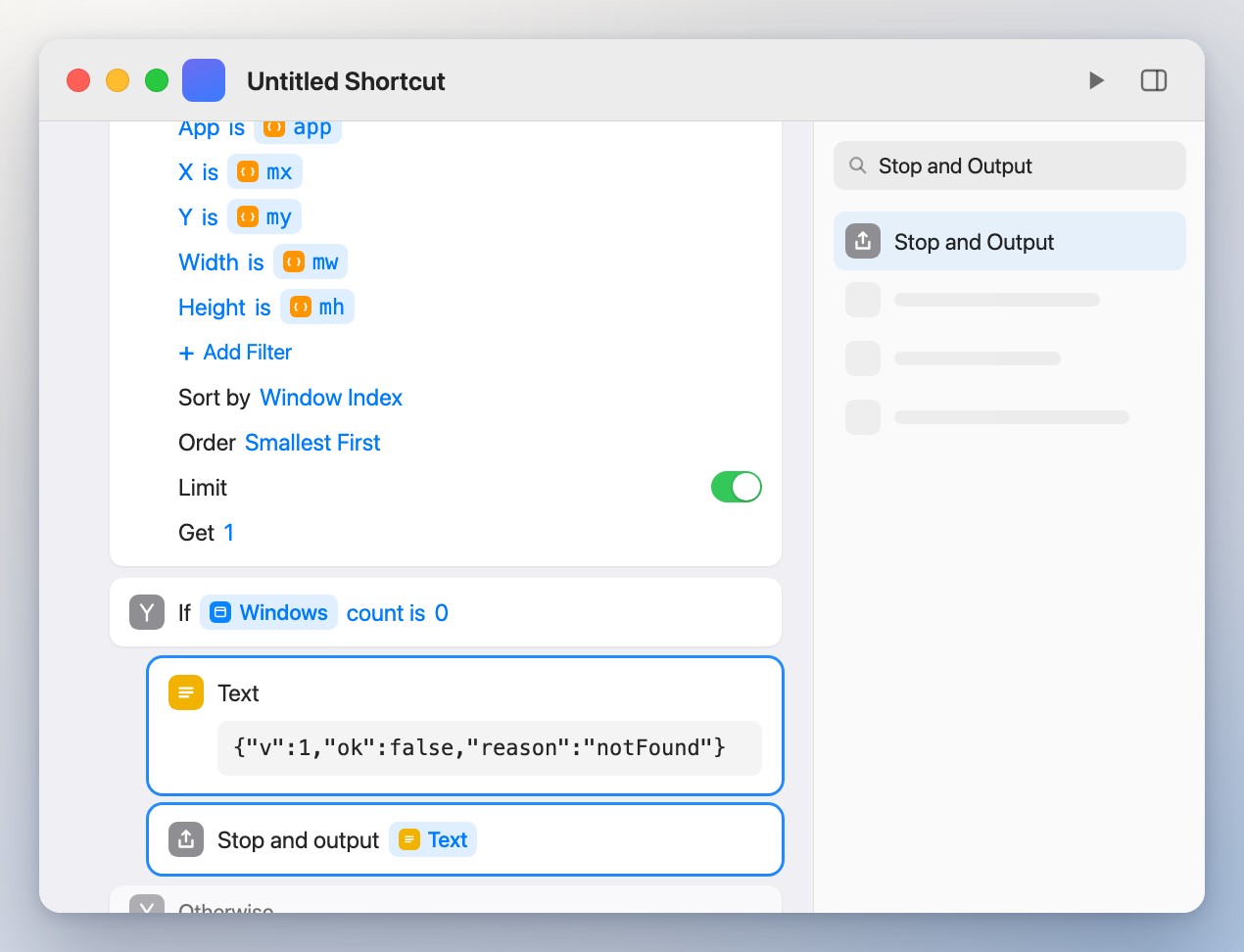
Textwith{"v":1,"ok":false,"reason":"notFound"}, thenStop and Output.{"v":1,"ok":false,"reason":"notFound"}
-
12Resize the window
Under its
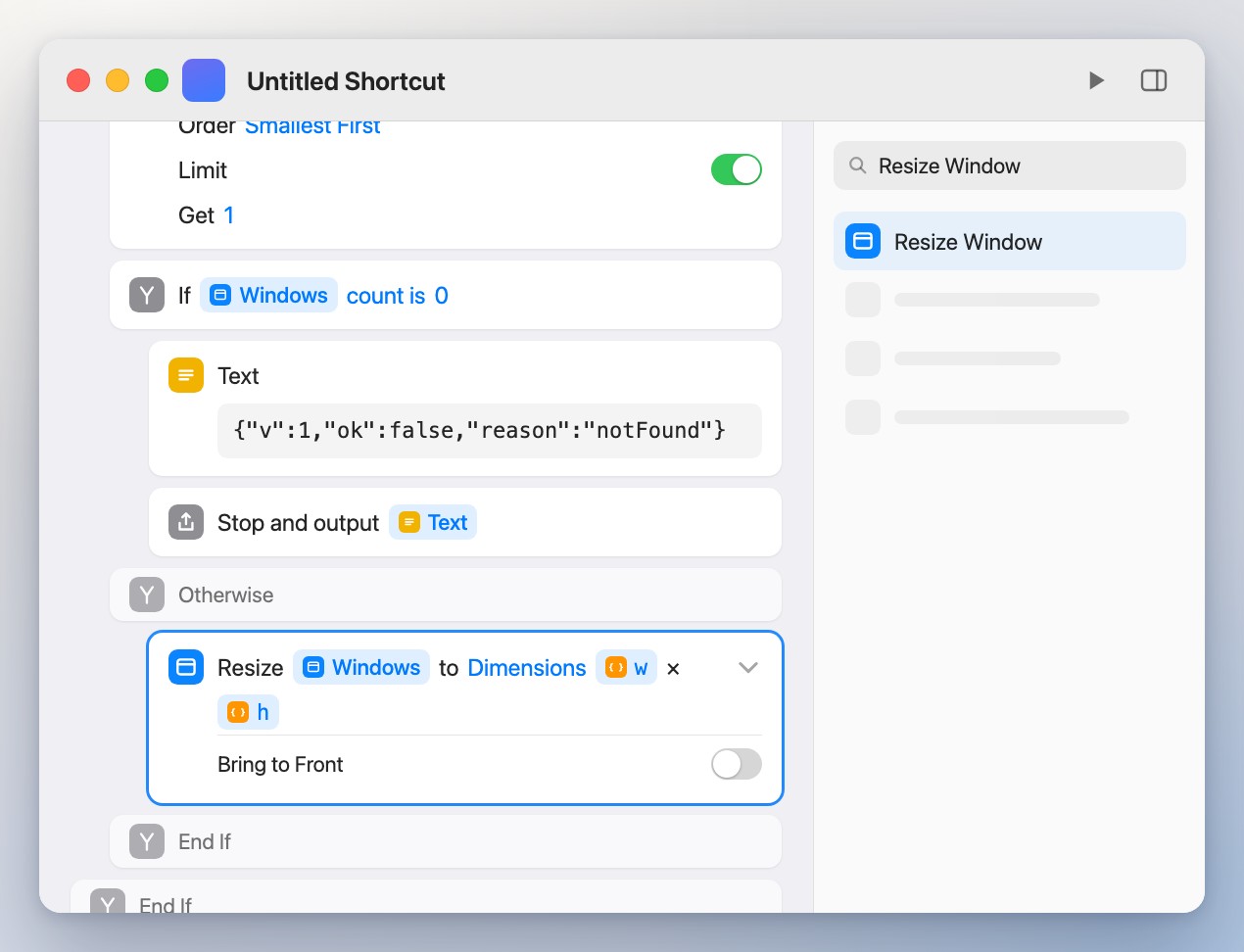
Otherwise, addResize WindowforWindows, with the keyswandh. Open its options and turn Bring to Front off.wh
-
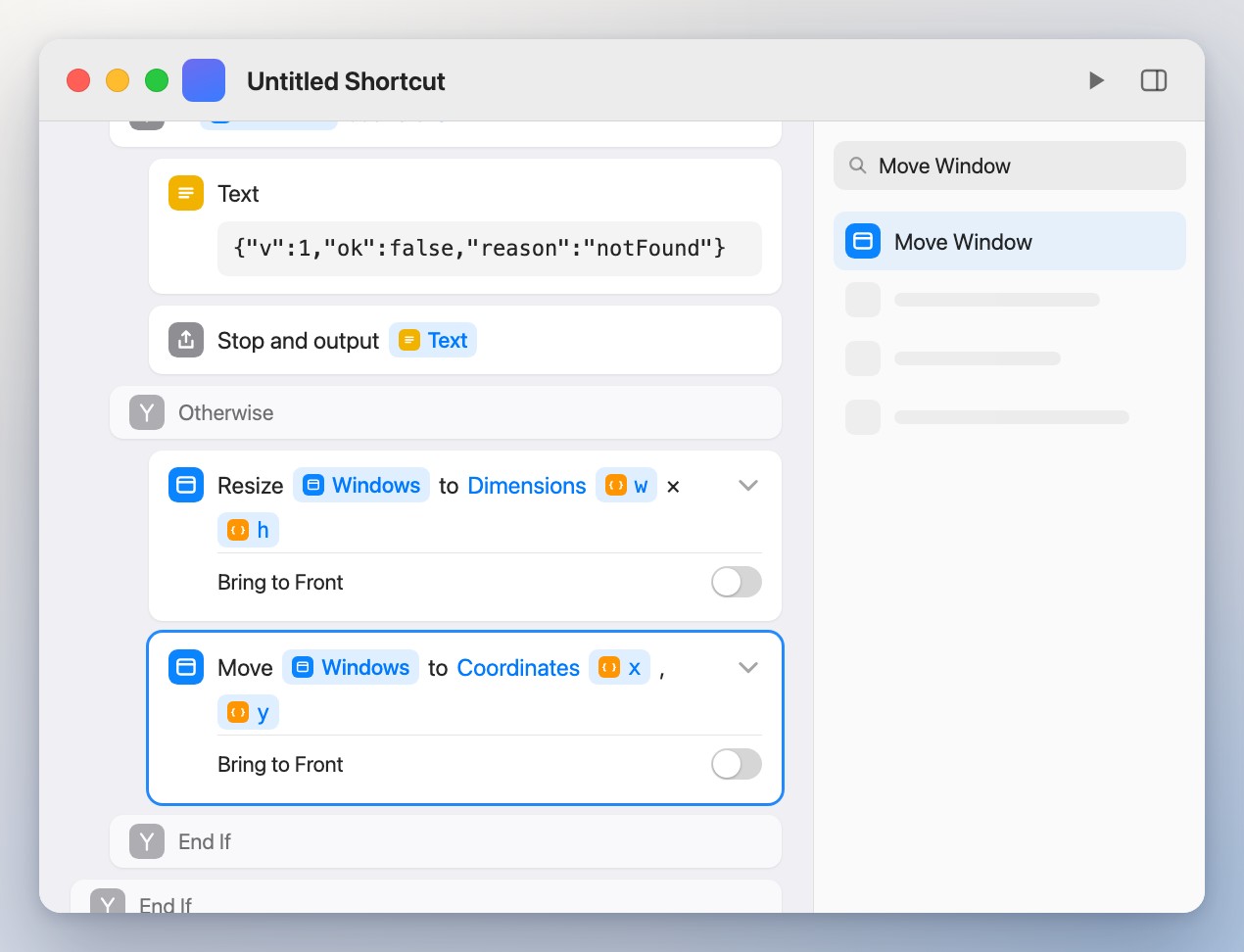
13Move it
Add
Move WindowforWindows, to the keysxandy. Turn Bring to Front off here too.xy
-
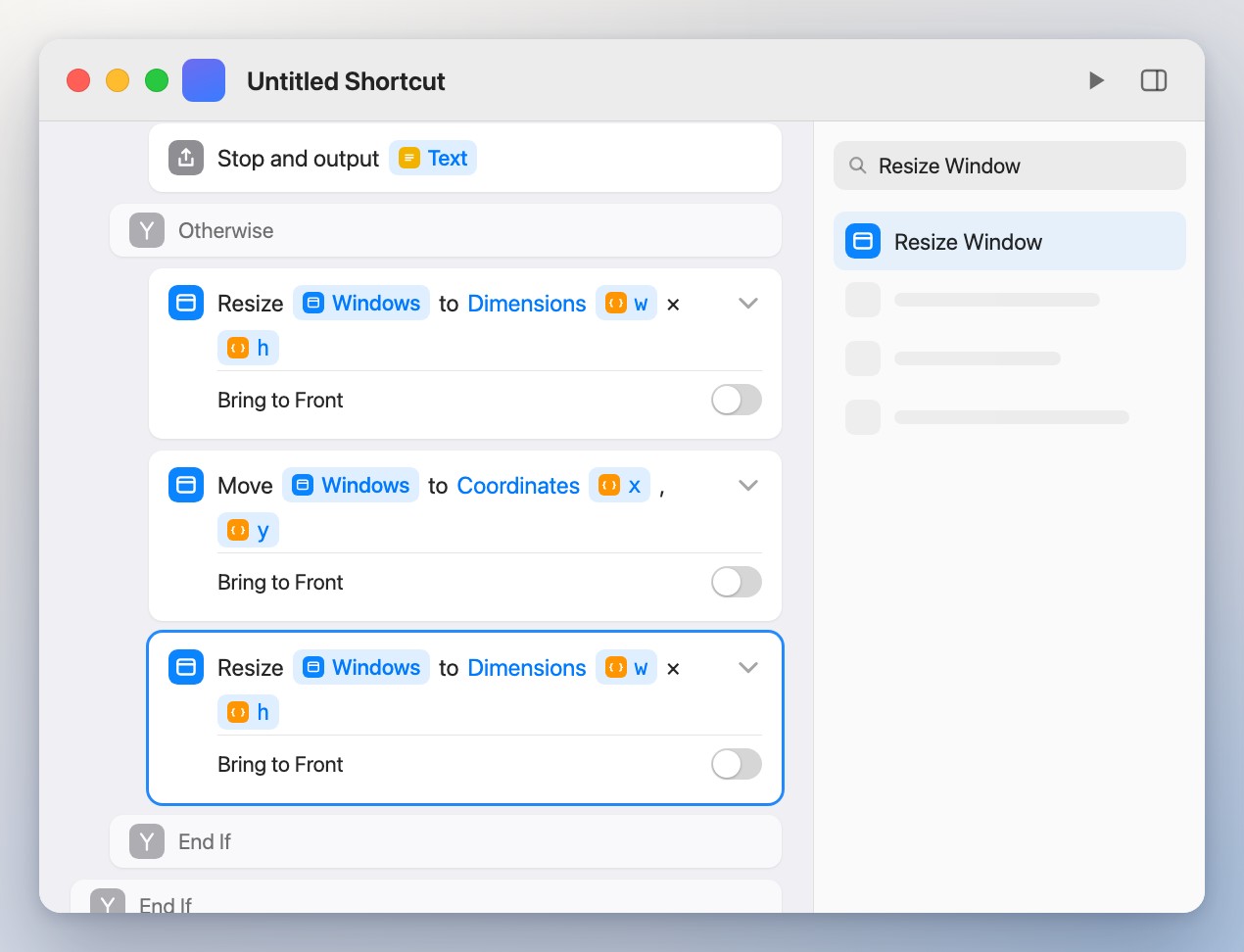
14Resize once more
Add a second
Resize Windowwithwandh, Bring to Front off. The order is on purpose: apps limit each change by the window's current size and position.wh
-
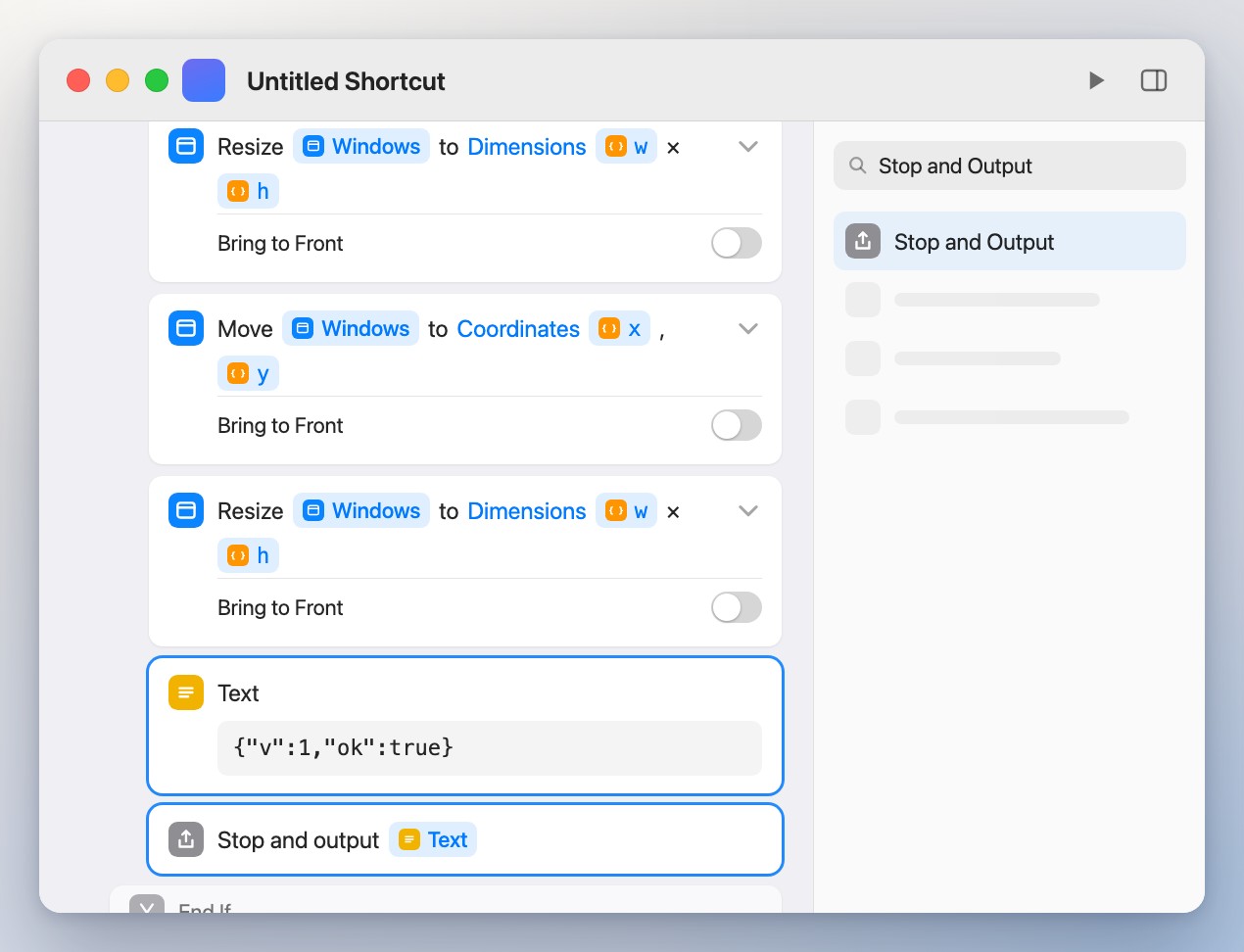
15Report success
Finish with
Textcontaining{"v":1,"ok":true}, thenStop and Output.{"v":1,"ok":true}
-
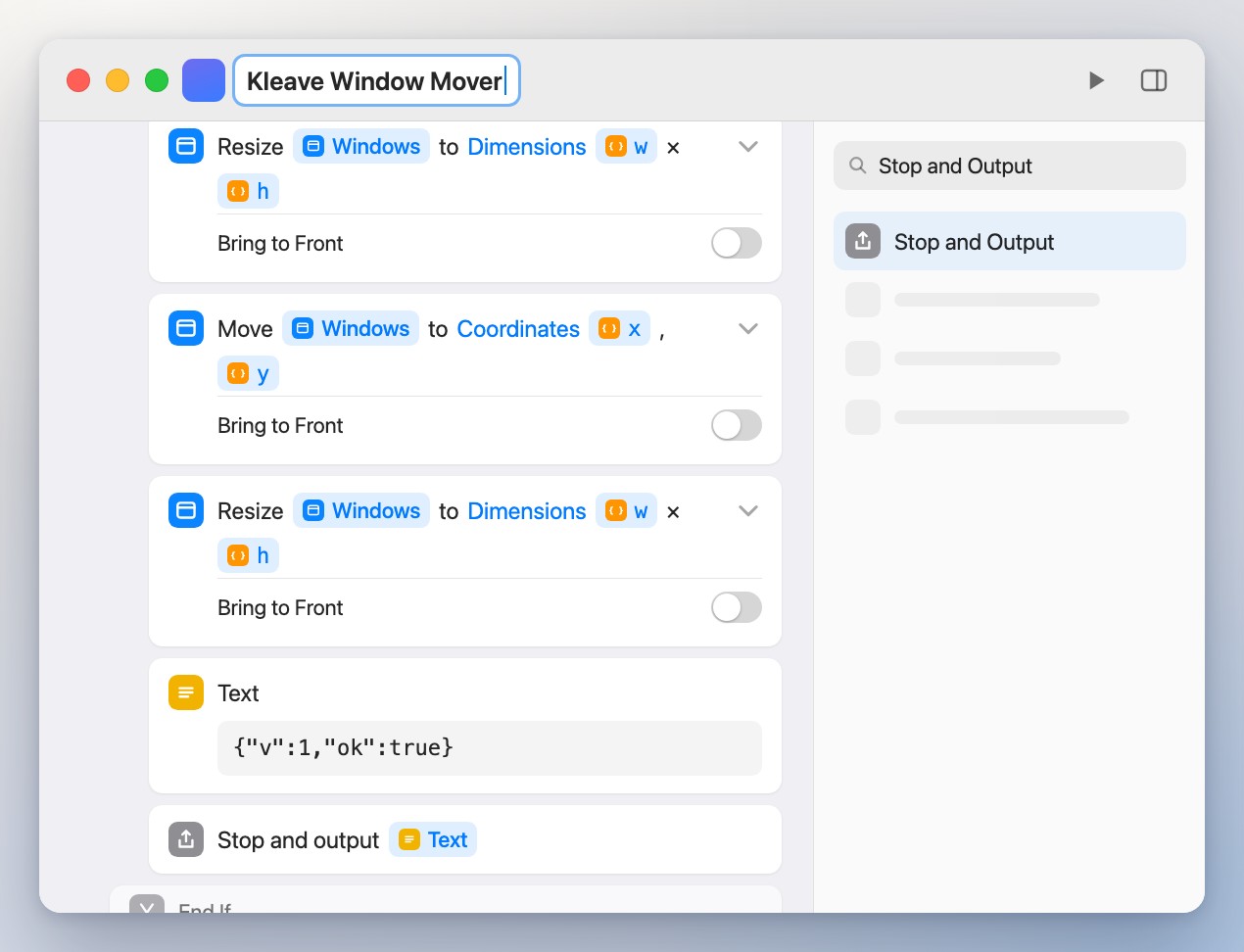
16Name it, last
Click the title and type
Kleave Window Mover, with the same capitals and spaces. Kleave takes the shortcut the moment the name matches, so name it only once every action is in.Kleave Window Mover
-
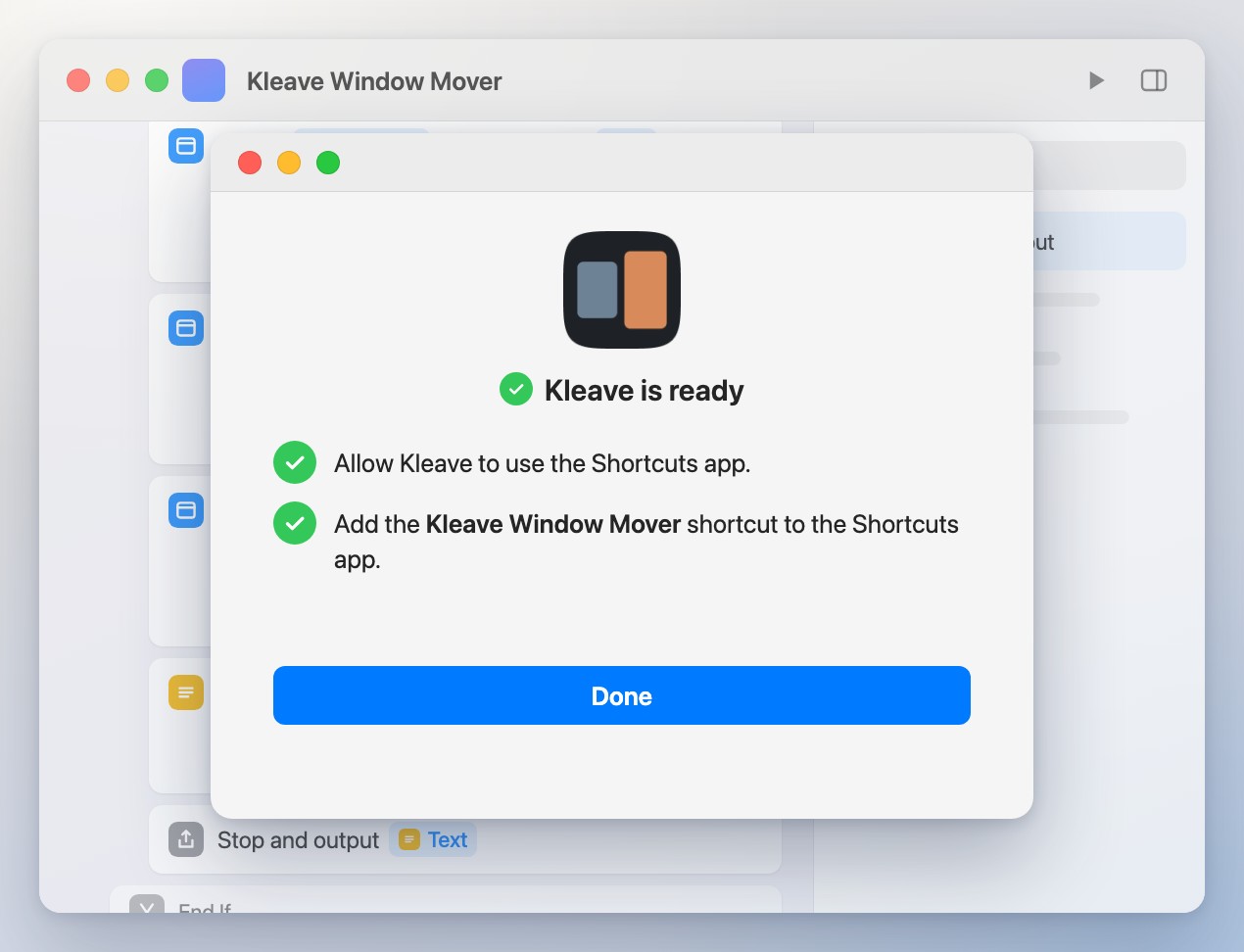
17Back to Kleave
Switch to Kleave. It finds your shortcut, checks it, and tells you it's ready. That's it.